
Google AI Studio, Leveraging the Latest AI Tools from Google for Your Work
Lately, Gemini is taking over the AI discussion space on the internet. Mostly because of a lot of positive reviews after its latest update and acing several synthetic benchmarks. The thing is, great things come at a cost. As a free user, you will have a limit in experiencing the latest Gemini model. Luckily, Google provides a lesser-known but powerful tool called Google AI Studio
What is Google AI Studio? What is the difference with Gemini?
Google has a history of creating several tools at the same time with overlapping functionality (ehm, Google Duo and Google Meet). It is almost the same in this case. You will mostly use Gemini to use Google's "Chat GPT." And as an end-user, it is intended that way.
Using Gemini, you will get access to the latest model but at very limited usage. And for Google Workspace for Education, the limit is 1000 requests per month for the whole institution. So imagine there are 100 teachers and staff at your school; you will only get to use the pro model by 10 requests per month if divided equally.
And here's how Google AI Studio comes to rescue.
Introducing Google AI Studio
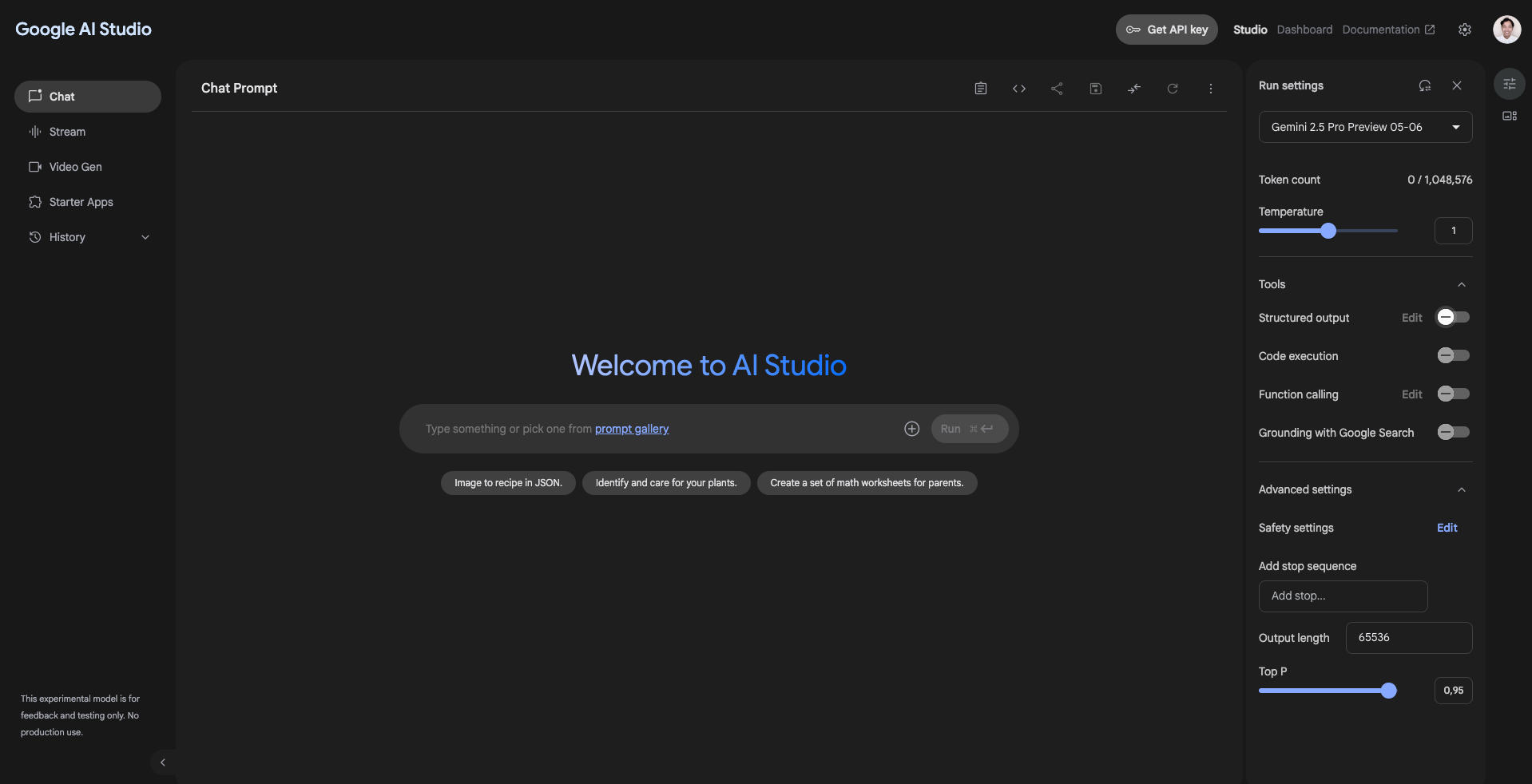
At this point, I believe you have known, even tried, Gemini, right? Google AI Studio is essentially the more advanced, customizable sibling of Gemini. Think of Gemini as Google's simplified chat tool, while AI Studio provides extensive control for developers and enthusiasts. Just look at your Gemini vs. AI Studio home screen, so many options, settings, parameters, etc. All of it is really important if you're a researcher, developer, or just an AI enthusiast who wants to experiment with Google's latest AI models and customization.
"I'm not a researcher, developer, or even an AI enthusiast. I just want to use AI to help with my work," you said. Here's why it's useful even for regular folks like us: higher limits. It has a 1500-request limit per day! It's basically unlimited for non-developers who use AI just to ask and write something. Also, if you love to write a lot of text or want the AI to answer in a very long format, the token limit is 1M tokens per request!
"But the UI is daunting." Indeed, but you can just focus on the chat box and enter your prompt and choose your desired model just like when you use Gemini or ChatGPT. With that, you now have a powerful AI for free and with more usage limit. But this means you are missing a lot of cool and helpful features. If you don't want to miss it, let's learn how to use Google AI Studio like a pro.
Using AI Studio Like a Pro
Let's start from the home page and see at right side.
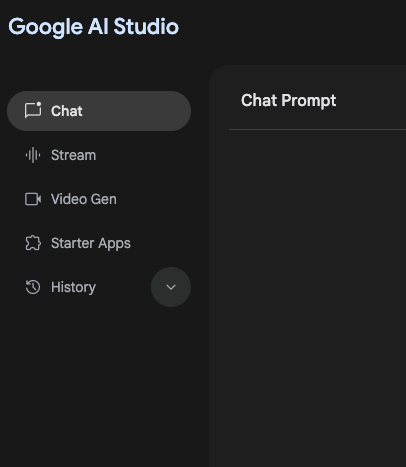
- Chat
This is the main features that you will use. All of Chat will be done here. A lot of settings can be done here so we will get back in more details on the next part. - Stream
Interact in real-time with Gooogle AI. With Stream you can interact using audio, video, and screen share. This is an interesting featurs as other AI LLM like ChatGPT is still limited in this kind of function. Some usecase that you might try are screen sharing and then talk in with the AI model directly to ask for recomendation. This would be amazing if you are learning something on you computer and want to have feedback directly.
The downside in this feature is the limited model you can use. Currenly, you are only allowed to use Gemini Flash 2.0 in this features which considerbly less capable than the newer Gemini Pro 2.5. - Video Gen
Generate a video from a prompt. The latest model of the Google Veo has been able to produce a good and coherent video and this is available for free unlike OpenAI's SORA which is outside of the ChatGPT Platform but still can only be used by ChatGPT Pro subscriber. - Starter App
This is geared toward developer. Google AI Studio is able to execute code like Pythone directly from the chat. So using only the Studio, you are able to create a working prototype of your own app. This features is where you can start your protoype using various template provided. - History
Your chat history, noting less nor more.
The Chat
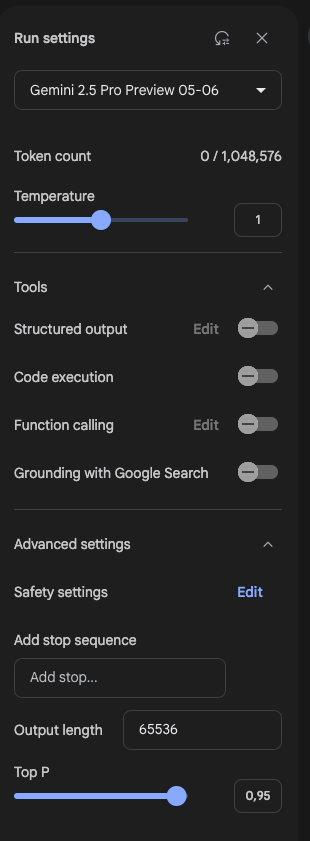
Let's get back to the main business. You should already be familiar with the central part of the Chat page. Now, the scary parts are all of the parameters on the right side of the page. They are actually very useful if you understand what they actually do. Let's find out.
- Model
The first setting you can customize is the LLM model. In the setting you can change between the latest Pro or Flash model. Each model will be more suitable for certain usage. For example, if your works need deep thinking and analysis, the Pro model would run better but slower. But if you just needs to get simple answer like "what is the biggest city in Namibia" you can use Flash which will provide quicker answer. - Token Count
This your limit per request or chat you sent. 1 token is not necessarily equal to 1 character in LLM. The general understanding for english language input 1 token is equal to 4 character. Any file upload will also takes up your token count. As AI Studio limit it usage by request per day, if you are a heavy user it is advised to use as much as token you can per request. But if you are not, then simple prompt would rarely make you hit your daily request limit anyway. But still, be effective yet clear on your prompt to get a better result. - Temperature
You can adjust how creative the result can be in this feature. Currently you can set either 1 or 2 on temperature. The higher the temperature, the more it can be creative. The downside, the more creative, the more probable the model halucinate or produce incorrect information. - Tools
Customize the tools that can be used in your chat:
- Structured Output : Makes the response more structured, suitable if you want some guide or technical documents.
- Code Execution : Enable the model to generate and execute code. Unless you know what you want to achieve, keep this off.
- Function Calling : Enable to model to connect with external tools or API. Unless you know what you want to achieve, keep this off.
- Grounding with Google Search : Enable to model to search the internet using Google Search to gain more data. - Advance Settings
- Safety Setting : Several safety paramaters that you can set to limit the output of the AI. This include Harrasement, Hate, Sexually Explicit, and Dangerous. Remember that even if you put the setting to "Do Not Block" for all parameters, the model itself have safety parameters set inside so it is still difficult to generate a very explicit or dangerous output in AI Studio. - Add Stop Sequence
Enables you to force stop the output generation triggered by certain string. - Output Length
Token limit of the response output. By default it set at max of 65,536 tokens - Top-P
Limit the randomness of the output token. For example, if tokens A, B, and C have a probability of 0.3, 0.2, and 0.1 and the top-P value is0.5, then the model will select either A or B as the next token by using temperature and excludes C as a candidate. It is highly advised to keep the default settings unless you know what you are trying to achieve from the settings.
The Free Tools that Give You Premium Services
With its capabilities, Google AI Studio, still free at the time of writing, offers an AI comparable and even superior in some aspects to ChatGPT, Claude, and others. As a Premium ChatGPT subscriber myself, I still find Google AI Studio extremely useful—and it's completely free! Give it a try today and see how it can enhance your productivity and creativity.